

YuJa Panorama
YuJa Panorama is a digital accessibility tool integrated with Canvas that helps instructors identify, understand, and address accessibility issues in course content. Panorama scans Canvas pages and supported course files, provides accessibility reports, offers remediation tools for some issues, and generates alternative formats that students can use to access course materials in different ways. Instructors should use Panorama as a guide for improving accessibility while continuing to review course content for issues that may require manual updates
Why is it Important?
Accessible course content helps ensure that all students can access, understand, and engage with learning materials. YuJa Panorama helps instructors identify accessibility barriers, prioritize improvements, and provide alternative formats that support diverse learning needs. By using Panorama throughout course development, instructors can create more inclusive learning experiences while improving the usability of their course content for all learners.
Guides and Tutorials for Instructors
Learn how to use YuJa Panorama to identify accessibility issues, improve course content, review accessibility reports, and understand the student experience.
Accessibility Reports provide detailed information about accessibility issues found in a specific file, page, discussion, or assignment. Use this report to review issues and learn how to improve accessibility.
- Go to the Canvas page or file you want to check.
- Locate and select the accessibility icon next to the item you want to review.
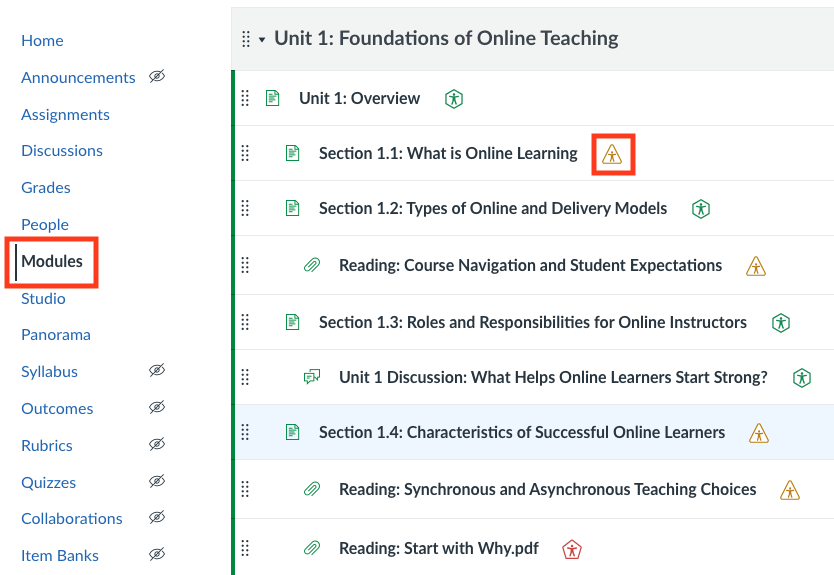
- Review the Accessibility Report for the item.
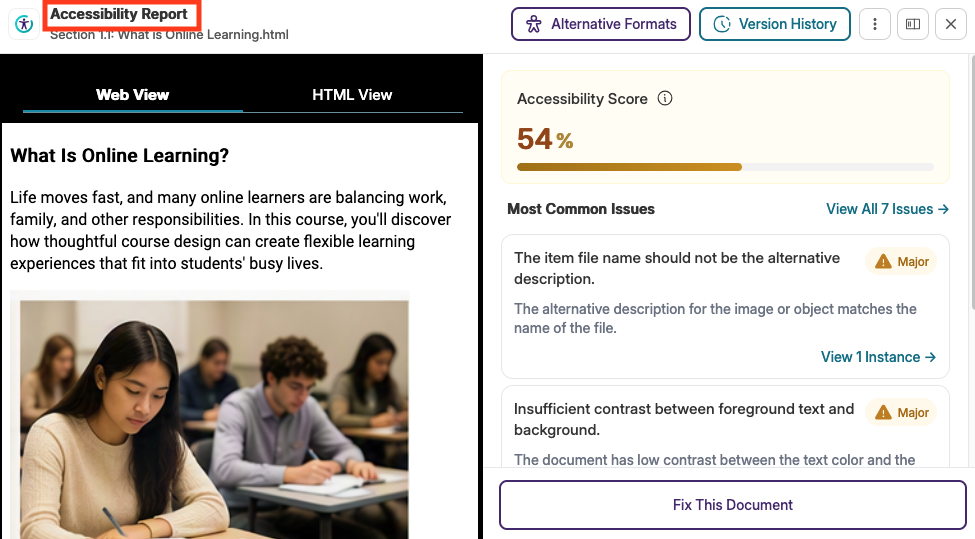
For more information on accessing accessibility reports in Canvas visit Getting Started with Panorama for Instructors.
The Course Report provides a course-wide view of accessibility issues and helps prioritize content that may require attention.
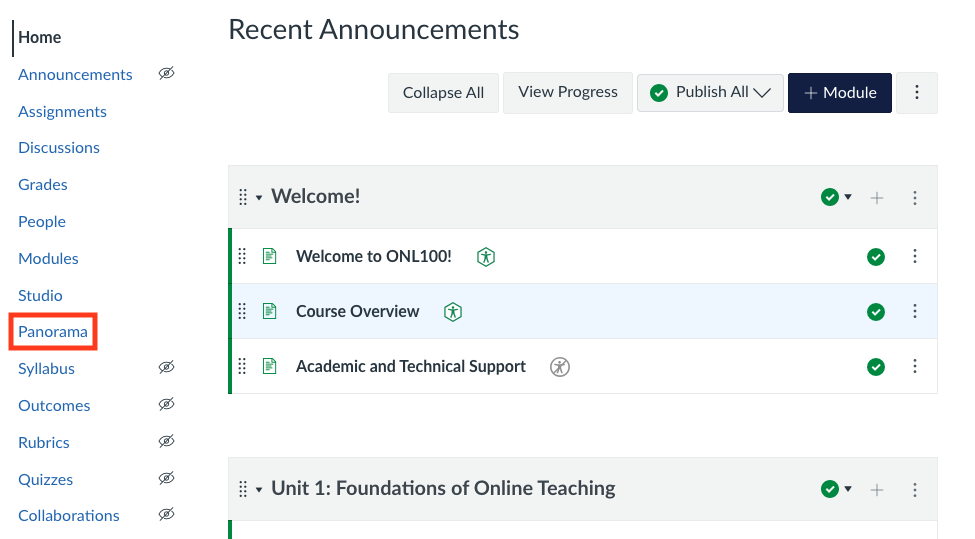
- Open your Canvas course.
- Select Panorama from the course navigation menu.
- Review the course accessibility score.
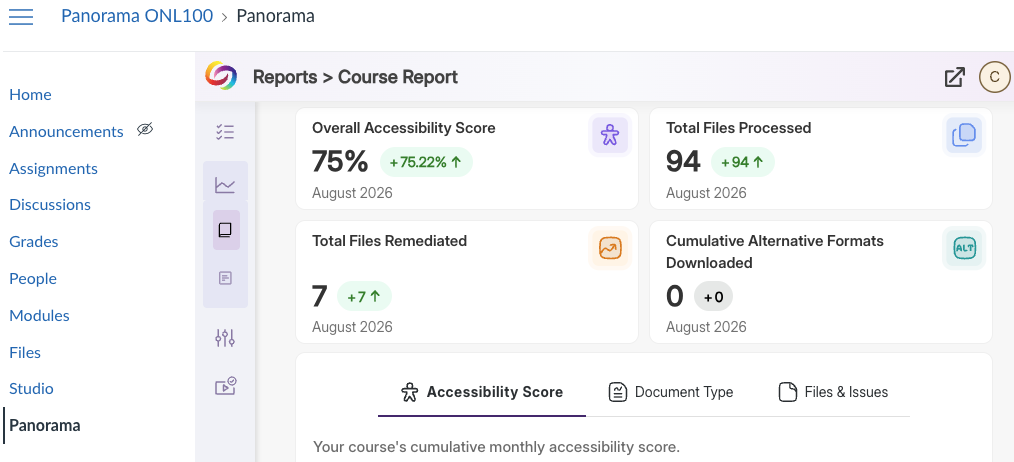
- Use the report to identify content that may need attention.
- Prioritize items with severe or major issues within the Course Report (Files & Issues > Issues > All Issues > Issue Severity)
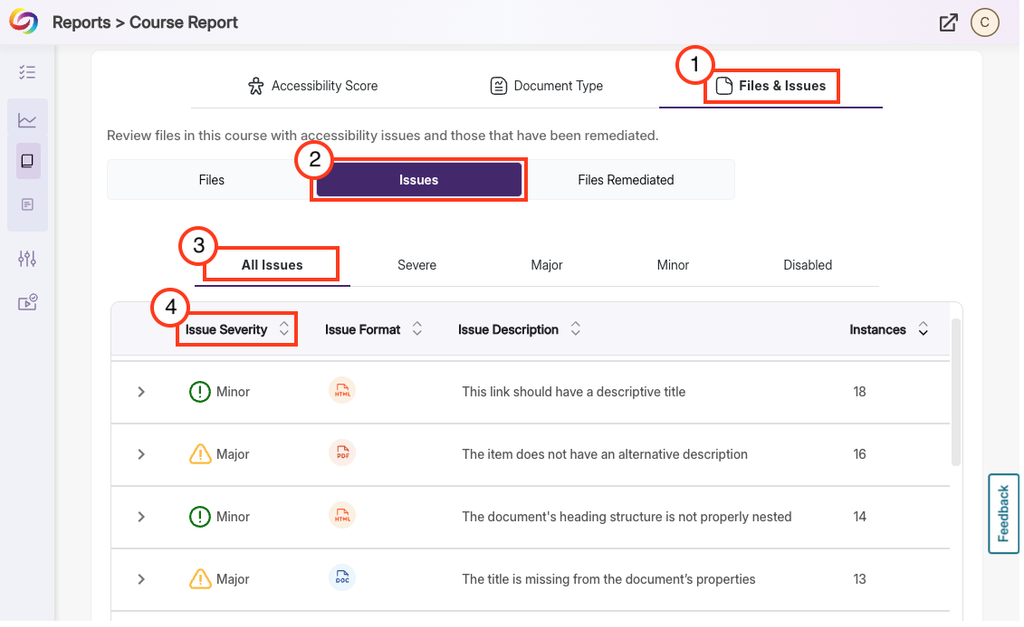
For more information on understanding your Course Report visit Understanding Reports in Panorama.
Panorama scores help instructors identify accessibility issues and opportunities for improvement. Students do not see these scores and only have access to alternative formats. Use scores as a guide, not a grade. A high score does not guarantee full accessibility, and a lower score does not necessarily mean content is unusable. Please note, students will only see a blue accessibility icon if alternative formats are available to them.
Remember that YuJa Panorama is a tool designed to help identify and address accessibility issues. Its scores are intended as guidance and do not reflect on you or your teaching. For more information, see the Suggested YuJa Panorama Accessibility Metrics guide. If you have questions about a score or need assistance resolving issues, contact accessibility@uncg.edu.
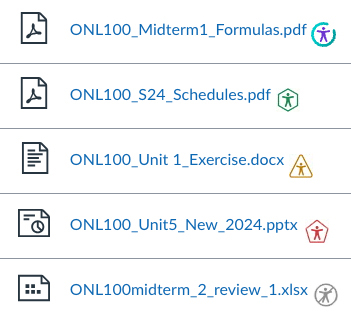
To interact with Panorama accessibility icons:
- Locate the Panorama icon next to a file or page.
- Selec the icon to open the Accessibility Report.
- Review the score and listed issues.
- Focus first on severe or major issues.
- Use the score as one indicator of accessibility, not the only measure.
Learn more about what Panorama accessibility icons mean.
| Icon | Description |
|---|---|
 | Accessibility score greater than 85% |
 | Accessibility score between 70% and 85% |
 | Accessibility score less than 70% |
 | Pending scan or unscanned document |
 | Not available (the document has not been scanned or cannot produce an accessibility score) |
 | Student-facing accessibility indicator indicating alternative formats are available |
Guided Remediation walks you through accessibility issues one at a time and provides recommendations for resolving them directly in Panorama.
- Select an area of your Canvas course from the sidebar menu (e.g., Modules, Pages, Files, Assignments, etc.)
- Locate and select the accessibility icon next to the item you want to review.
- Review the Accessibility Report for the item.
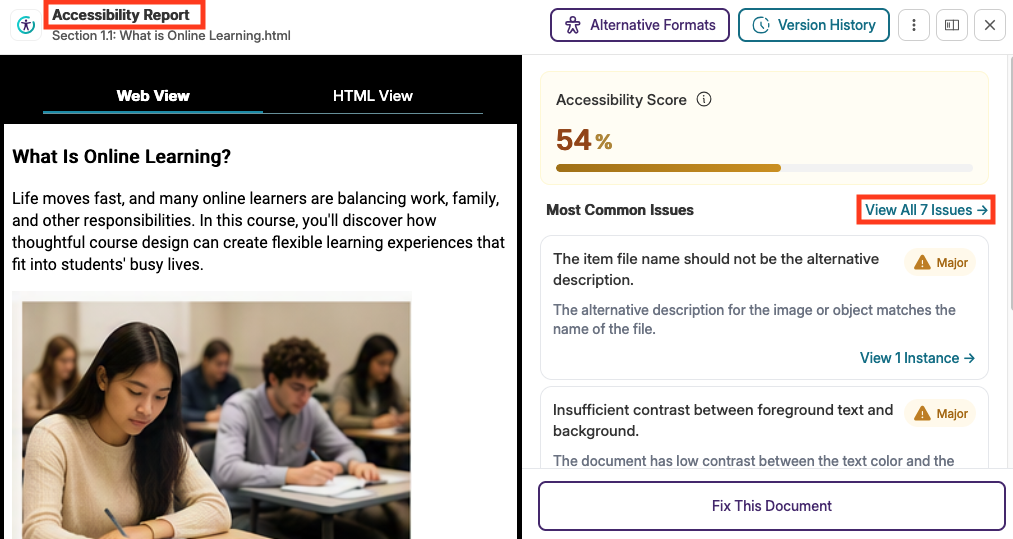
- Select View All Issues or the available issue details to learn what needs attention.
- Identify issues to update and click Fix Issue.

- Read more about the issue, open the Help Guide for additional explanation, Skip the Issue, or choose Select Fix to accept Panorama’s fix suggestion.

- Review the selected fixes.
- Select Apply Fixes to the document. IMPORTANT! You must complete this step or your changes will not be saved.

Great job! You are good to go!
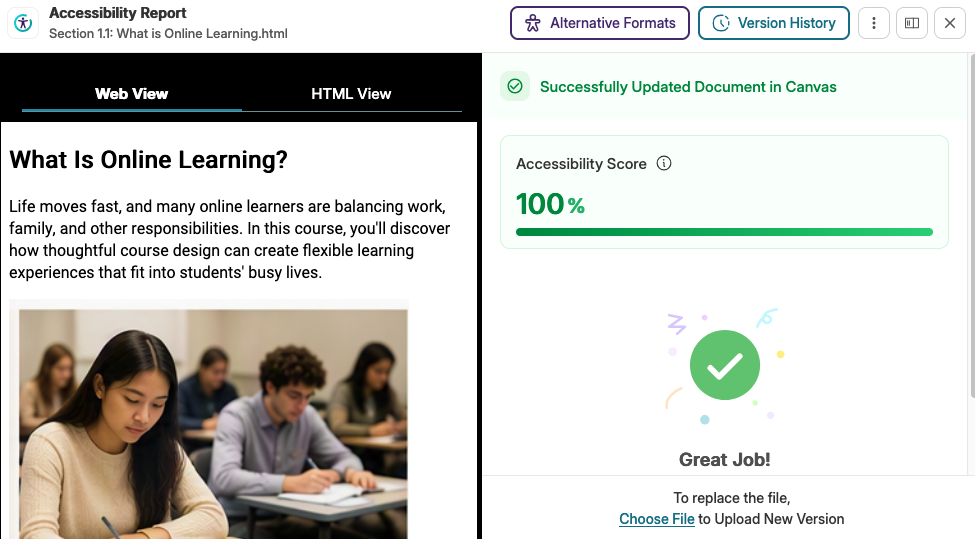
For more information on accessing accessibility reports in Canvas visit Getting Started with Panorama for Instructors.
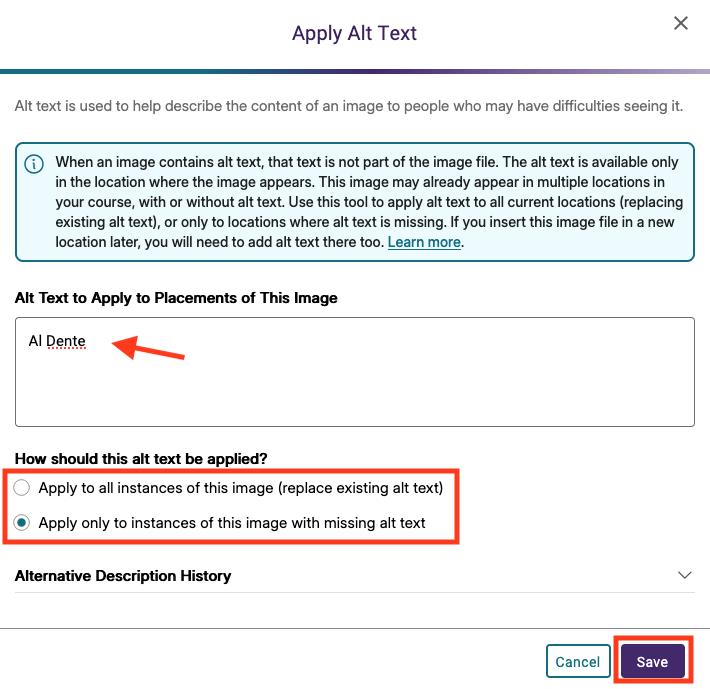
Alternative text helps students using screen readers understand the purpose and content of images. Use Panorama to identify images that need alt text and add descriptions directly from the accessibility report.
From the Files section
- Select the ALT icon next to the image you want to update
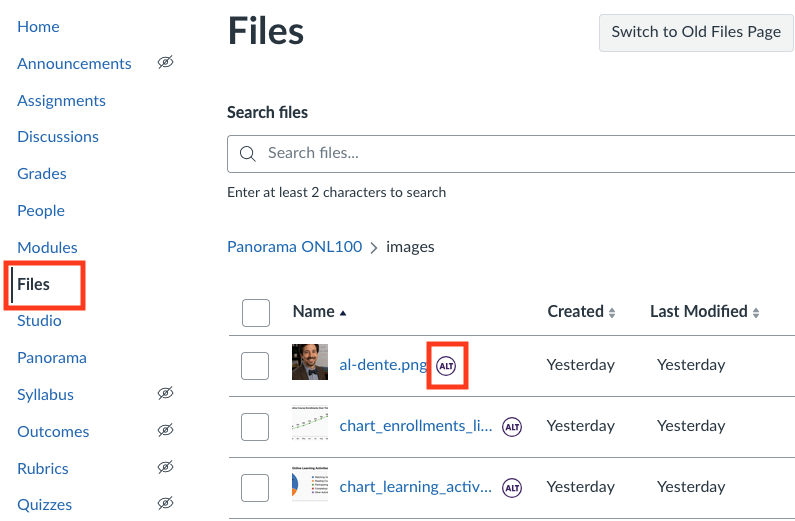
- Enter the Alt Text for the image, select how it should be applied, and click Save.
From a Canvas page
- Open the Accessibility Report for the Canvas page or file.

- Locate the image-related accessibility issue by selecting either View Issue or View Instance.
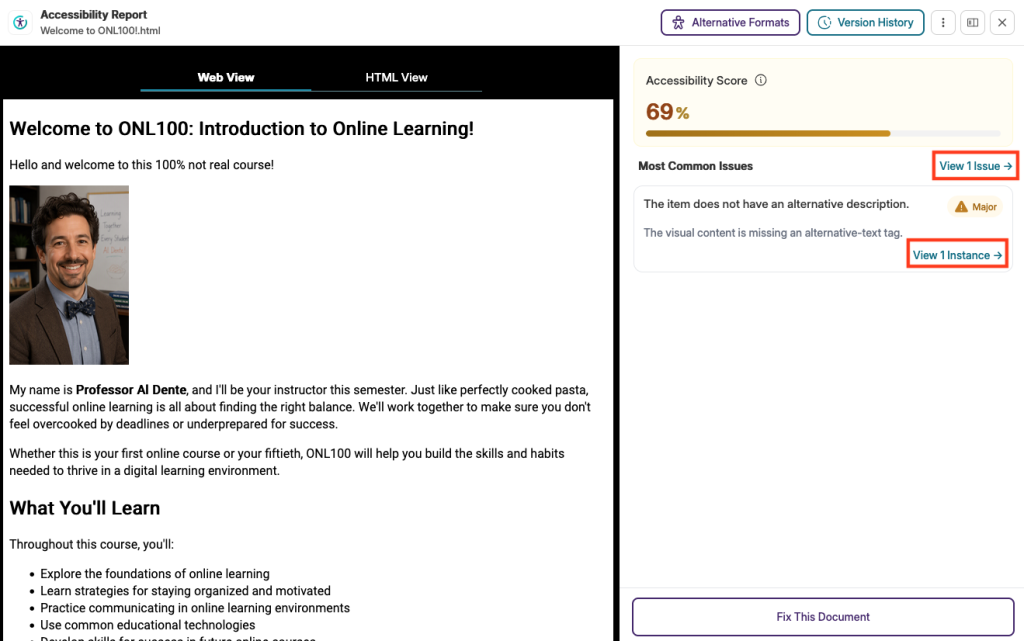
- Select Fix Issue
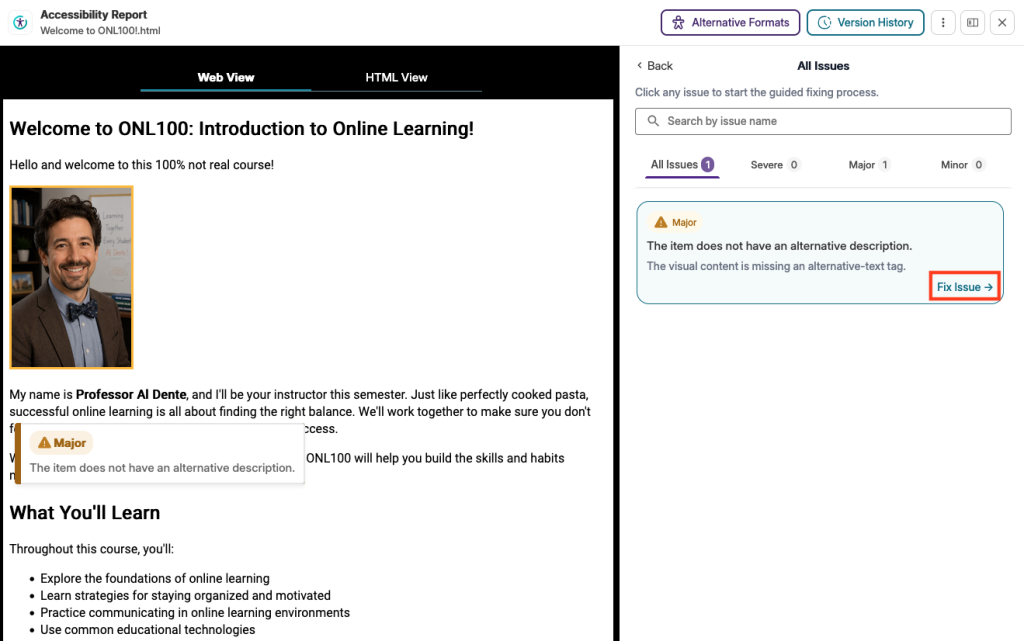
- Add meaningful alt text that describes the purpose of the image OR mark the image as decorative.
- Click Select Fix
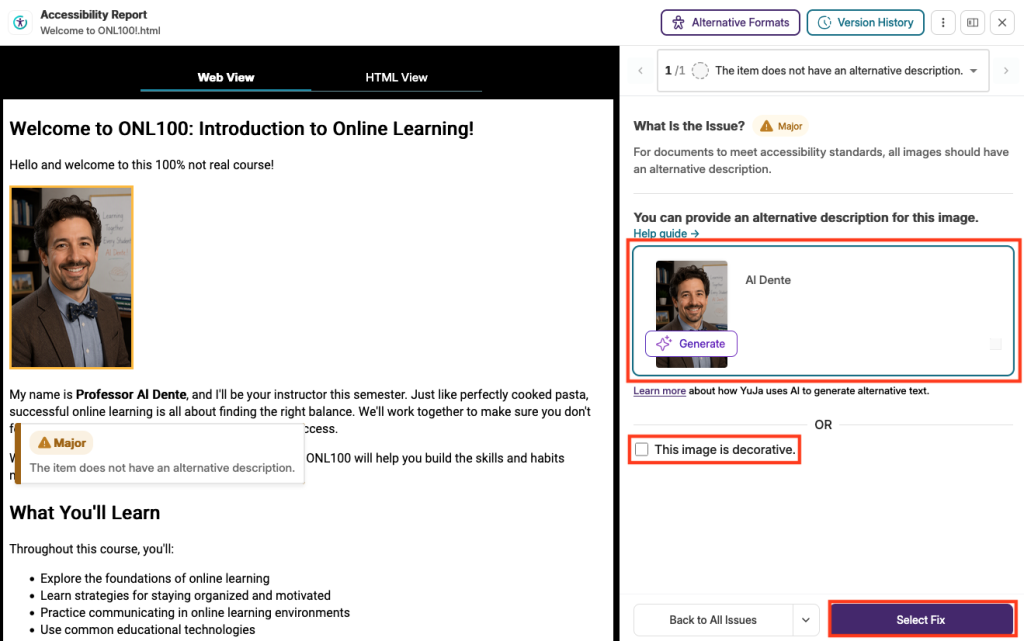
- Select Apply Fix to Document
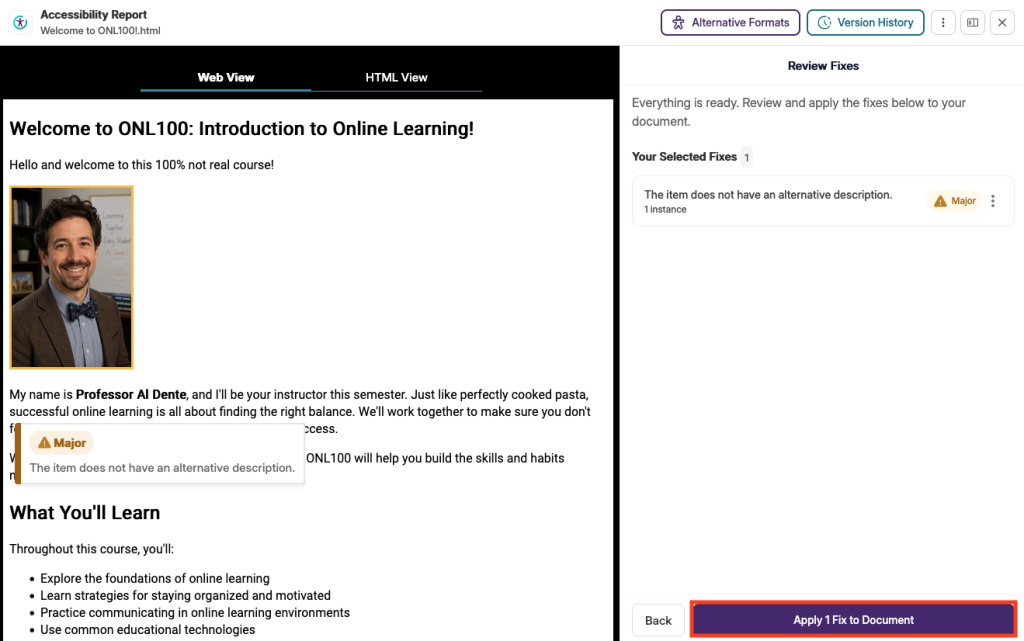
- Recheck the item to confirm the issue is resolved.
If your document needs to be remediated, you can choose to have Panorama provide guided remediation assistance when possible, or you can download the file, remediate it, and then upload the new version to Canvas.
- Locate the document you’d like to update.
- Click on the Accessibility Icon next to the document to open the Accessibility Report for the document.
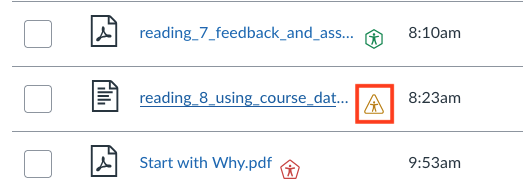
- Click on Fix This Document
- Choose either Guided Remediation With Assistance OR Choose File to Upload New Version.


Guided Remediation
- After selecting Guided Remediation With Assistance, follow the steps to update the document
- For each issue, follow the remediation instructions and click Select Fix.
- When finished, click Apply Fix(es) to Document to save your work.
NOTE: Depending on the document, there may be other issues that will require you to download the document and upload it to Canvas. If this is the case, follow the steps below to upload the new version.
Upload New Version
- After selecting Choose File to Upload New Version, locate your file, select it, and click Open
For more information on using alternative formats or restoring a document to a previous version read:
Alternative formats allow students to access content in formats that may better meet their individual needs. Instructors can preview these formats to better understand the student experience.
Alternate formats work best when the original document is created with accessibility in mind. For instructor-created documents, accessibility issues can be minimized in Panorama by using the accessibility tools and features available in the application used to create the original document (e.g. Word, PowerPoint, or other authoring tools). Accessible source files will produce higher-quality alternate formats that students can use, while minimizing the need for additional corrections in Panorama.
While they’re designed to improve access to course materials, alternate formats are not guaranteed to be fully accessible. Accessibility issues that exist in the original file, particularly in third-party PDFs and other documents, may remain in Panorama-generated alternate formats.
- Open your Canvas course.
- Go to a file with a Panorama accessibility icon.
- Select the accessibility icon.
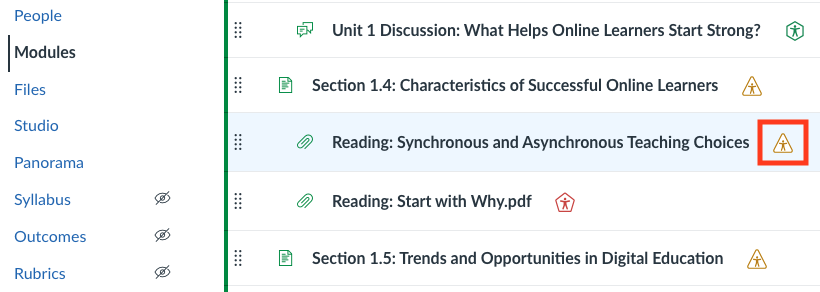
- Open the Alternative Formats menu.

- Select an available format. If you need help understanding the Alternative Formats Menu options click the Help link.
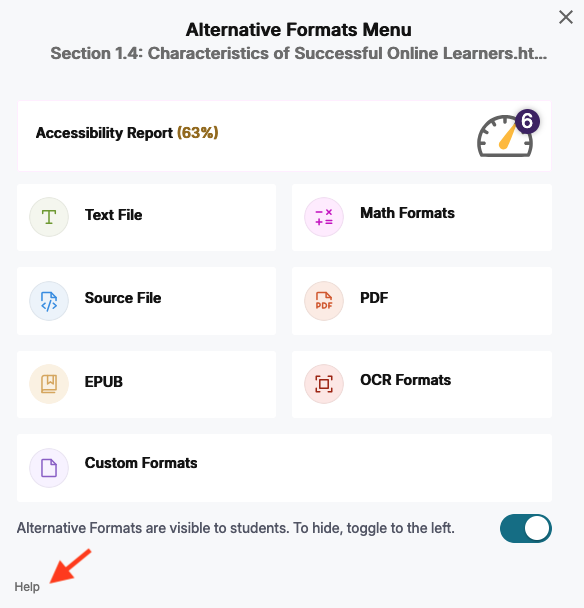
- Preview the format to better understand the student experience.
For more information on accessing alternative formats visit Getting Started with Panorama for Instructors.
Instructors can enable or disable alternative formats for a specific file and for the entire course.
Enable/Disable one or more Alternative Formats for an entire Course
- Select Panorama menu from the course menu.
- Select Configuration from the left-hand panel.
- Select General Settings.
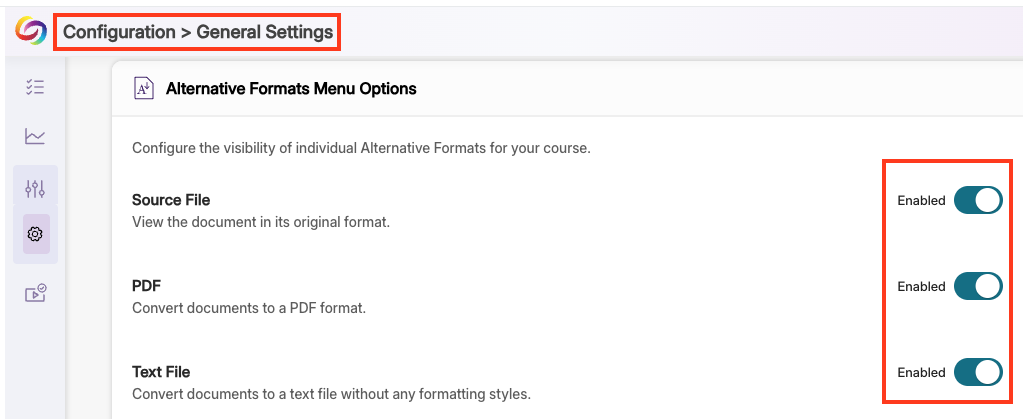
- Scroll down the General Settings section and locate Alternative Formats Menu Options.
- Choose enable or disable specific Alternative Formats by selecting the enabled/disabled slider button.
- Navigate to the top of the Configuration > General Setting section and choose Save Changes.
Disable Alternative Formats for a specific File
- Locate the file in your course and select the accessibility icon next to the item.
- Click/Tap the slider next to the option to hide alternative formats.

For more information on Panorama’s alternative formats read Accessing the Panorama Alternative Formats Menu.
Guides and Tutorials for Students
Learn how to access and use Panorama’s alternative formats to read, listen to, translate, or interact with course documents in ways that best support your learning needs.
Alternative formats provide additional ways to access course files, including audio, translated, braille-ready, and text-based versions. While they’re designed to improve access to course materials, alternate formats are not guaranteed to be fully accessible. Accessibility issues that exist in the original file, particularly in third-party PDFs and other documents, may remain in Panorama-generated alternate formats.
- Open your Canvas course.
- Locate the file you want to access.
- Select the blue accessibility icon next to the file.
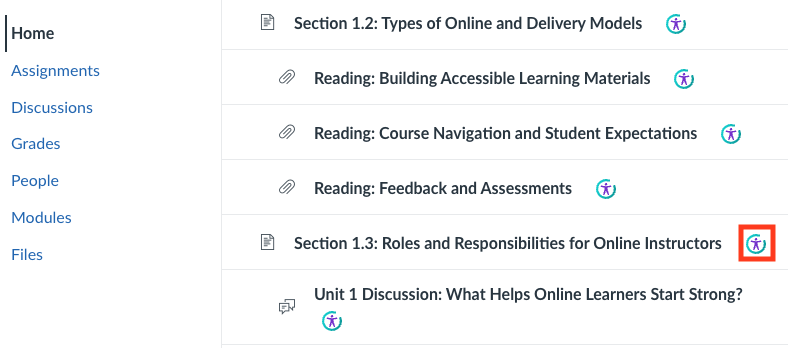
- Choose an available alternative format. If you need help understanding the Alternative Formats Menu options click the Help link.
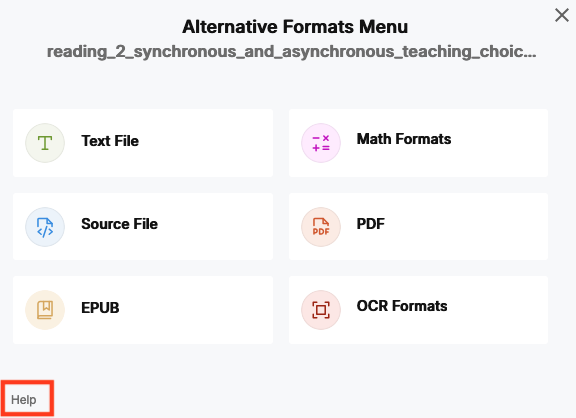
- Follow the prompts to generate or download the format.
For more information on accessing alternative formats visit Getting Started with Panorama for Students.
Additional Resources
Instructor resources
- YuJa Panorama Help Center
- YuJa Panorama Video Tutorials
- Panorama LMS Accessibility Platform Overview
- Getting Started with Panorama for Instructors in Canvas
- Accessing the Panorama Alternative Formats Menu
- Panorama’s Accessibility Checklist
- Resolving the Accessibility Issues for Your Documents
- Adding Alt Text to Images in Canvas Using Panorama
Student resources
Get Help
- Contact YuJa Panorama’s 24/7 support team
- Request a web accessibility consultation
- Request an instructional design consultation
- Contact Academic Technology Specialist (ATS)
- Office of Accessibility Resources and Services
Last Updated: August 24, 2026